%20(600%20x%20400%20px)%20(1).png)
How to Track Form Sources Across Multiple Branded WorkForms in monday.com (Without Adding 16 Columns)
If you're running multiple branded versions of the same form - different logos, different names, same underlying data - you've probably run into a frustrating limitation: monday.com WorkForms doesn't let you automatically tag submissions with which form they came from in one single column, at least not out of the box.
Here's a practical workaround that solves this without bloating your board with a separate column for every single brand source/tag.
The Problem
Say you have one main board that needs to capture a "Source" for every lead, but that data is coming in through several different forms - one for each brand. Each form looks different, but they all feed the same board.
When someone submits through the generic form link WorkForms provided, the "Source" field on your board stays empty because nothing is telling the form which brand it belongs to. In other words: the mechanism exists, but it has to be filled in manually for each version of the form you create.
The Workaround
The fix is simple once you see it, and it scales well even if you have many branded forms.
Step 1: Create a Hidden Field and Set Up the Prefill URL Value
This is the foundation of the whole workaround and the step most people miss.
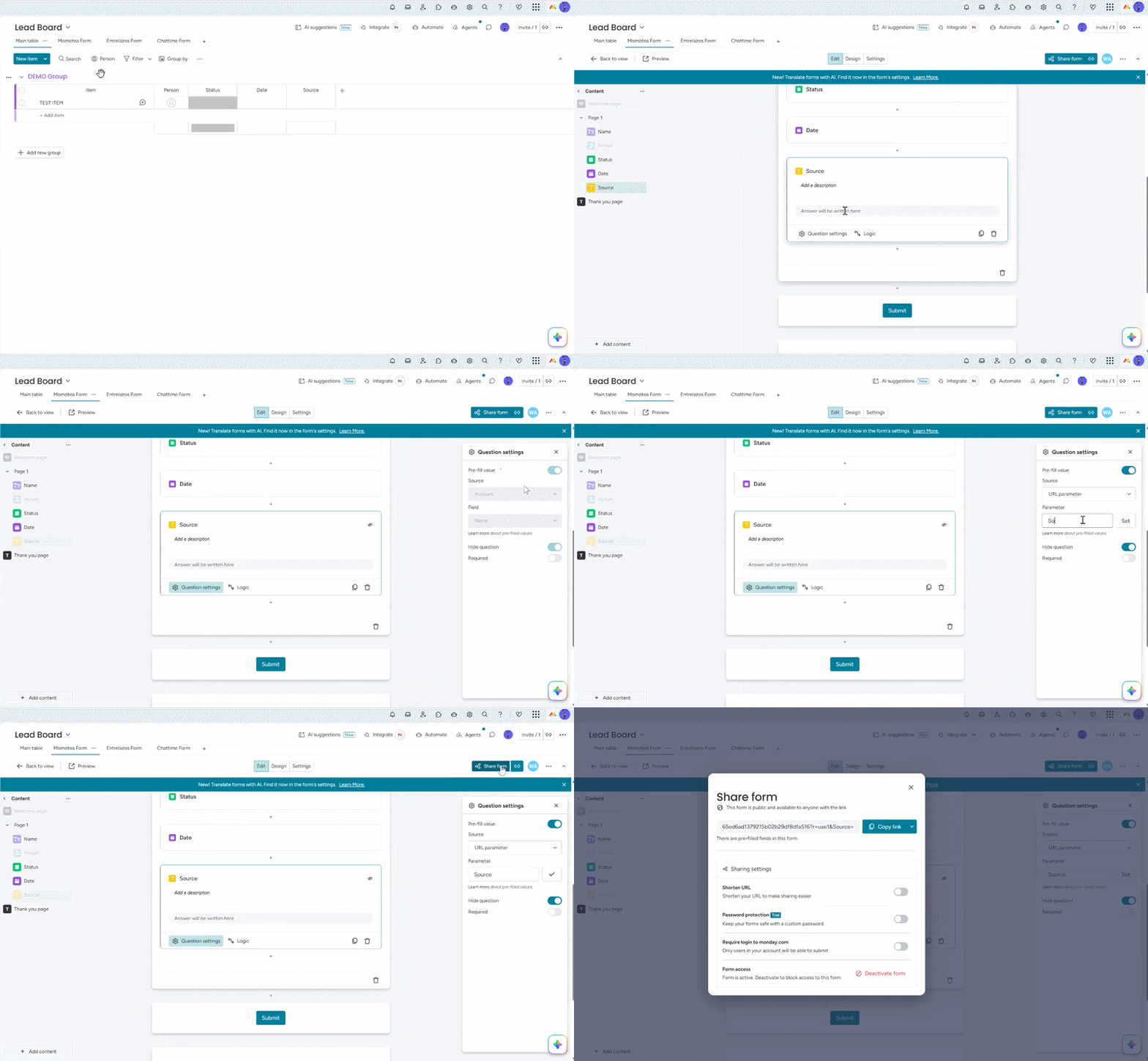
In your WorkForm, create a hidden field mapped to the "Source" column on your board. Once the hidden field is created, go into its question settings and enable the URL parameter option. Name the parameter source.
What this does is tell the form: "whenever someone opens this form with ?source= in the URL, take whatever value is after the equals sign and automatically drop it into this hidden field."
At this point, if you copy the generic share link from the form, it will look something like this:
https://yourform.com/?source=
Notice the equals sign has nothing after it. That's expected - the form is ready and listening for a source value, but we haven't given it one yet. That's what the next step solves.
Step 2: Create a Link Depository Board & Store Your Link
Now that your form is set up to accept a prefill value through the URL, you need a central place to store all your pre-tagged links. This is your Link Depository Board.
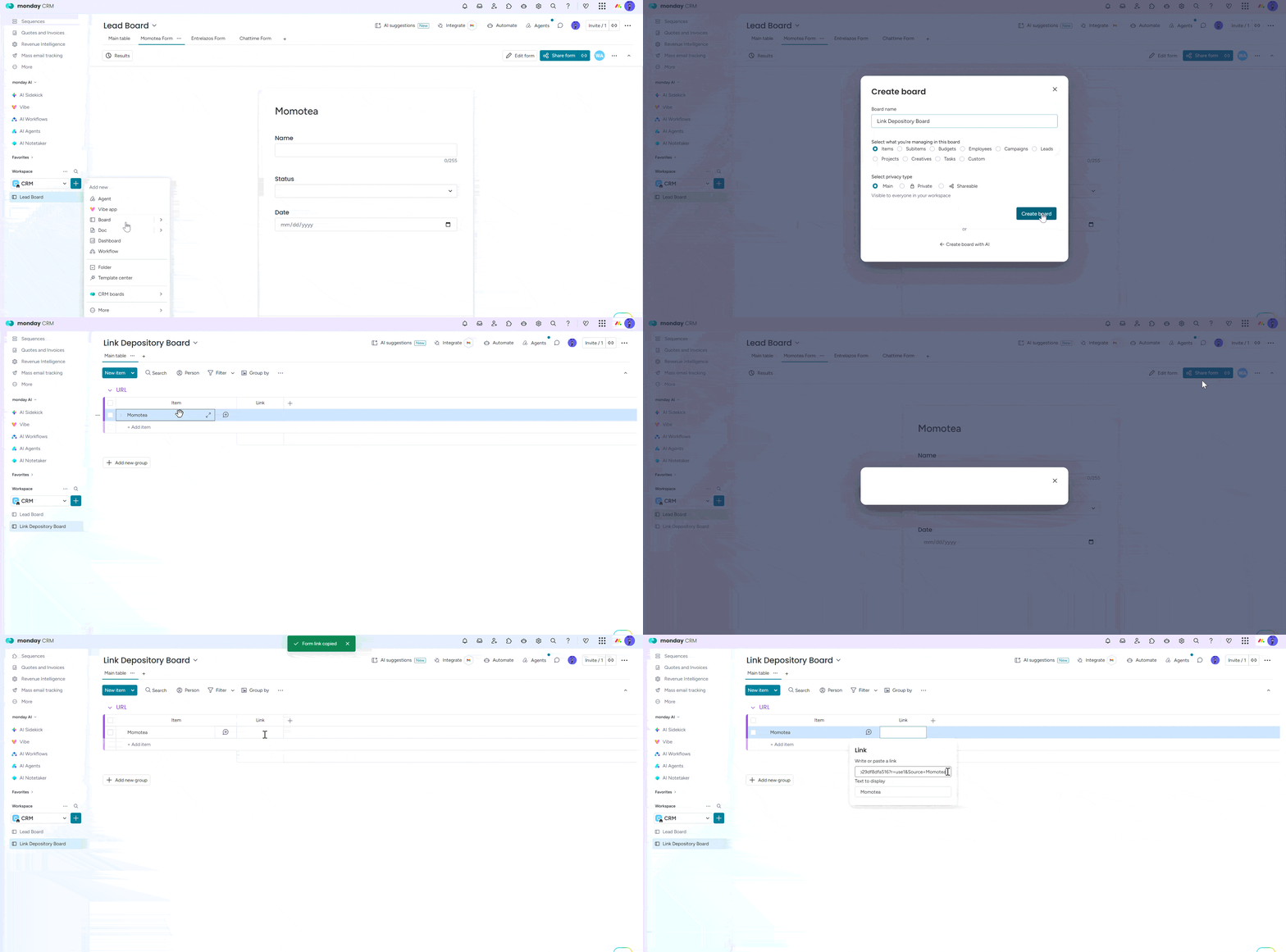
For each branded form, you'll create entries here with the links:
Copy the share link from your form , paste it your Link column on Link Depository Board and manually append the brand name after the source= parameter:
https://yourform.com/?source=MomoTea
Now when anyone opens the form through this link, the source parameter is no longer blank - it automatically reads "MomoTea" and the hidden field gets pre-filled before the person even starts typing.
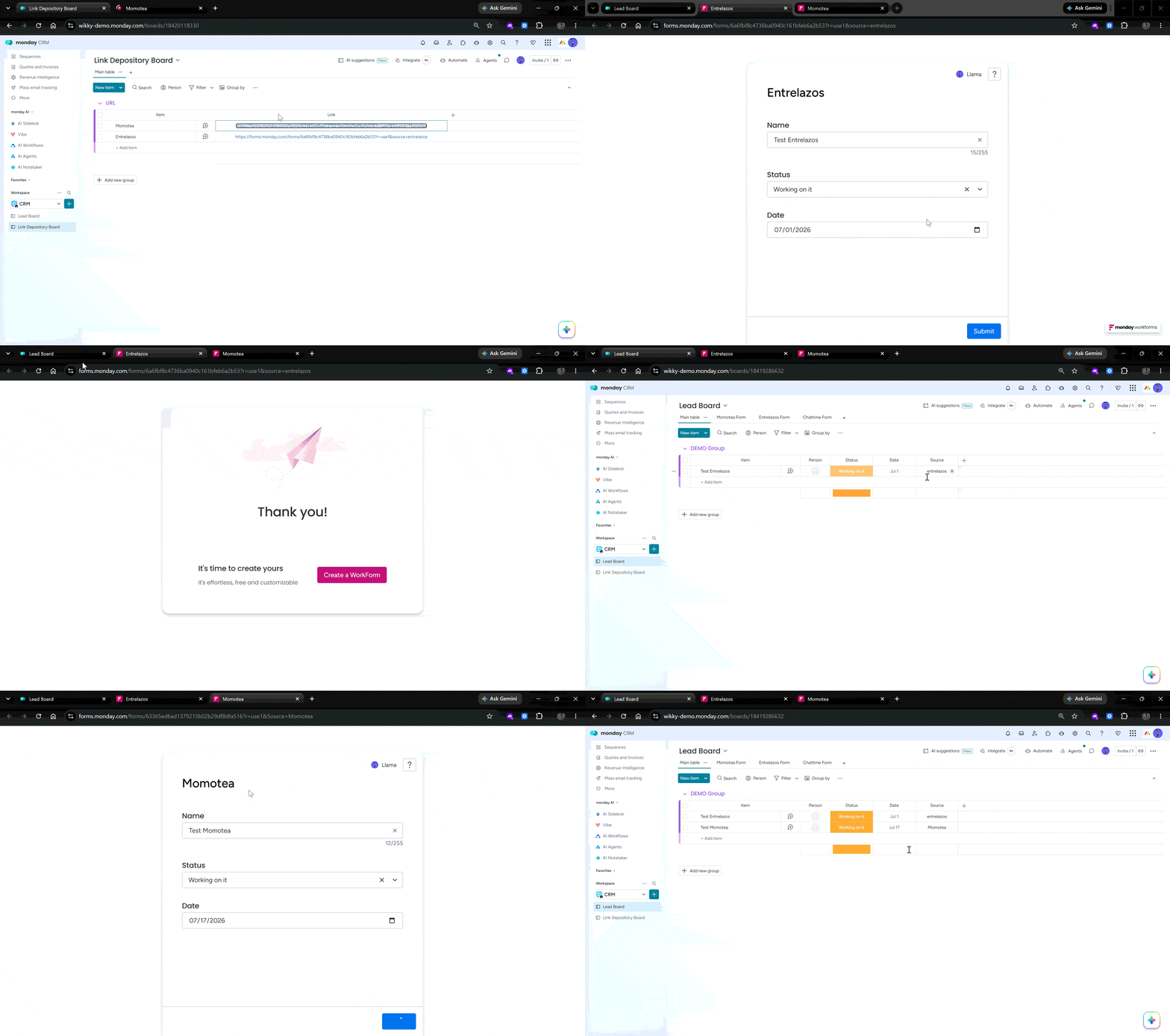
If a form is going to be embedded on a website (rather than just shared as a link), repeat the process with the embed link instead. Pull the embed code, find the source parameter inside it, and manually map in the correct brand name - for example, appending source=MomoTea to the embed URL as well. Save this as a separate entry in your depository board, something like "MomoTea Embedded URL."
Step 3: Repeat for Every Brand
When you drop that embed code into a website widget and someone submits the form, the same auto-tagging happens: the submission lands on your board with "MomoTea" already filled in, no manual entry required.
The same pattern applies to every branded form - MomoTea, EntreLasso, or however many you have. Each one gets its own pre-tagged share link and embedded URL stored in the depository board.
Why This Beats the Alternative
The obvious alternative is to create a separate column on your board for every single brand - so if you have 16 branded forms, you end up with 16 columns, most of which are empty for any given row. That's messy, hard to maintain, and doesn't scale well as you add more brands.
With the link depository approach, you keep a single "Source" column on your main board. All the complexity lives in one dedicated place - the depository board - where every link is pre-tagged with the right source value. Your main board stays clean, and every new submission arrives already correctly categorized.
The Trade-Off
Yes, this means an extra board to maintain, and yes, every new branded form means manually creating a couple of new link entries (one for sharing, one for embedding). It's not fully automated. But compared to managing 16+ columns on your primary board, it's a far more manageable system - and it keeps your data structure simple as you add more brands over time.
Related Questions
Add a question to your form the way you normally would, then open its Question settings. There's a toggle to hide the question from the form itself - once it's on, you'll see an eye-with-a-slash icon on that question block. It stays fully functional (it can still receive and pass data), it's just invisible to whoever's filling out the form.
In the "+ Add content" menu on your form builder, search for the column name you want to connect to (in this case, "Source"). If that column already exists on your board, WorkForms will show it as an option to pair with rather than creating a new one - select that, and your hidden question is now writing directly into your existing Source column instead of creating a duplicate.
Inside the same Question settings panel, look for "Pre-fill value." Toggle it on and you'll be asked to choose a Source: either Account (pulls data from a logged-in monday.com user - Enterprise only) or URL parameter (pulls data from a link you construct - available on Pro and Enterprise plans). Choose URL parameter and name it something simple like source.
Once a question is set to pre-fill from a URL parameter, the form is listening for that parameter name in its link. When someone opens yourform.com/?source=MomoTea, WorkForms reads "MomoTea" from the URL and drops it straight into the mapped field before the person even sees the form - no typing, no manual selection.
Not natively for full UTM tracking (source/medium/campaign as separate structured fields) - but worth knowing that monday.com does have a built-in "Form tags" feature for source tracking, separate from the hidden-field method in this article. Form tags append a parameter to your form link and auto-create a text column that fills in with the tag on submission. It's a simpler native option if you only need one clean source label per link and don't need it mapped into an existing column, the hidden-field approach here is more flexible if you need that value flowing into a column you're already using elsewhere in your board setup.
That's exactly what the Source column captures automatically once this is set up - every submission arrives already tagged with the brand name of the specific link or embed it came through, so you never have to guess or manually cross-reference which form URL a lead used.
A few usual suspects: the parameter name in your URL doesn't exactly match the parameter name you set in Question settings (case and spelling matter), the hidden question isn't actually mapped to a board column yet (it's just floating as an unmapped question); or the link being shared doesn't have the ?source= value appended at all, so there's nothing for the field to pull in. Double-check all three before assuming it's a bug.
Library
Knowledge to build better workflows
A curated collection of insights, guides, and case studies on workflow design, monday.com implementation, and operational structure.
%20(600%20x%20400%20px)%20(2).png)
How many vacation days do I have left?
Every HR team hears this question. Every week. Sometimes every day. It's a fair question. It's also a small one. And small questions, asked often enough, eat real time.
%20(600%20x%20400%20px).png)
When monday.com Isn't Missing Much - Just One View
How we solved a construction company's scheduling headache with one embedded app instead of a whole new platform.

monday CRM vs Salesforce vs HubSpot: An Honest CRM Comparison for Growing Businesses
An honest, experience-driven comparison of monday CRM vs Salesforce, HubSpot, and other leading CRMs—helping businesses choose the right platform based on their size, workflows, and growth stage. Discover where monday excels in flexibility, usability, and speed, and when competitors may be a better fit. Ideal for teams looking to balance power, simplicity, and scalability in their CRM choice.

When to Hire a monday.com Expert: Making the Most of Your Work OS
A well-configured monday.com setup can transform how your team works—but getting it right isn’t always straightforward. This article explores the key signs you need a monday.com expert and how the right implementation can turn your Work OS into a powerful, automated business engine. Learn when to bring in expert help and how it can save time, improve adoption, and maximize your ROI.

The True Cost of monday.com: Pricing Tiers, Hidden Expenses, and Real ROI
Understanding the true cost of monday.com goes beyond subscription pricing—it includes seats, integrations, apps, and implementation time. By evaluating the full picture and planning strategically, businesses can avoid hidden expenses and unlock strong ROI. The key is aligning the platform with your long-term growth and operational needs.